
Associated users is an “off campus” access method where patrons get access to your content by logging in to Springer Nature Link and nature.com with their Springer Nature account.
You can see and download a list of all associated users, and manually invite and remove users, via the Access page on the Librarian Portal.
Step 1: Sending an invitation to the user you want to associate with your institution account:
- The registered administrator login to Springer Nature Librarian Portal
- On the top panel, go to ‘Access’, 'Associated users'.
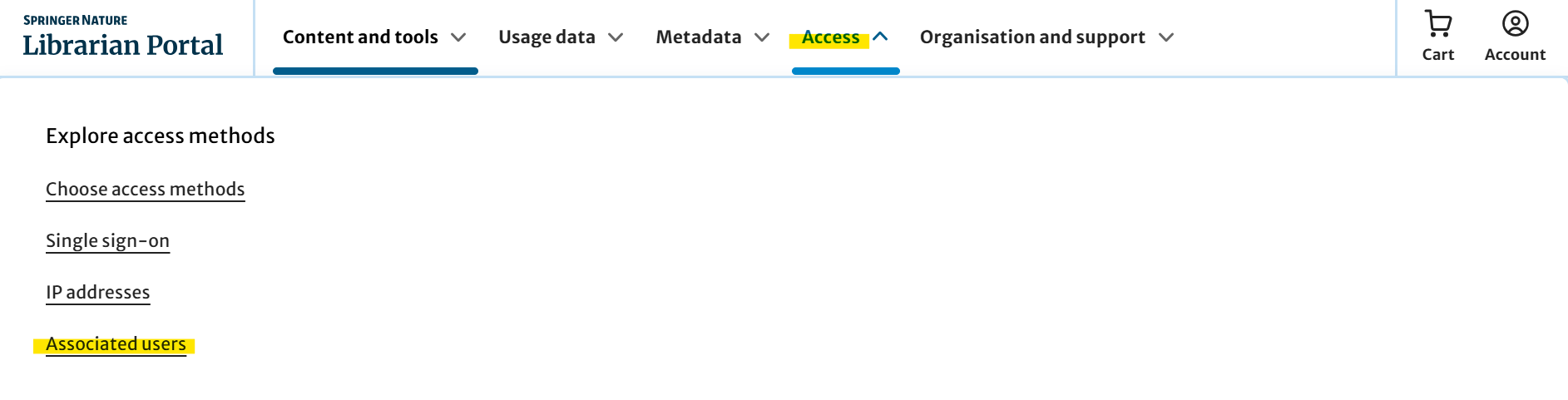
You will see 'Associated users':
- Enter the email address(es) and select an end date, then click ‘Send invite’.
- An email to 'Get access' will be sent to the email address(es) you entered.
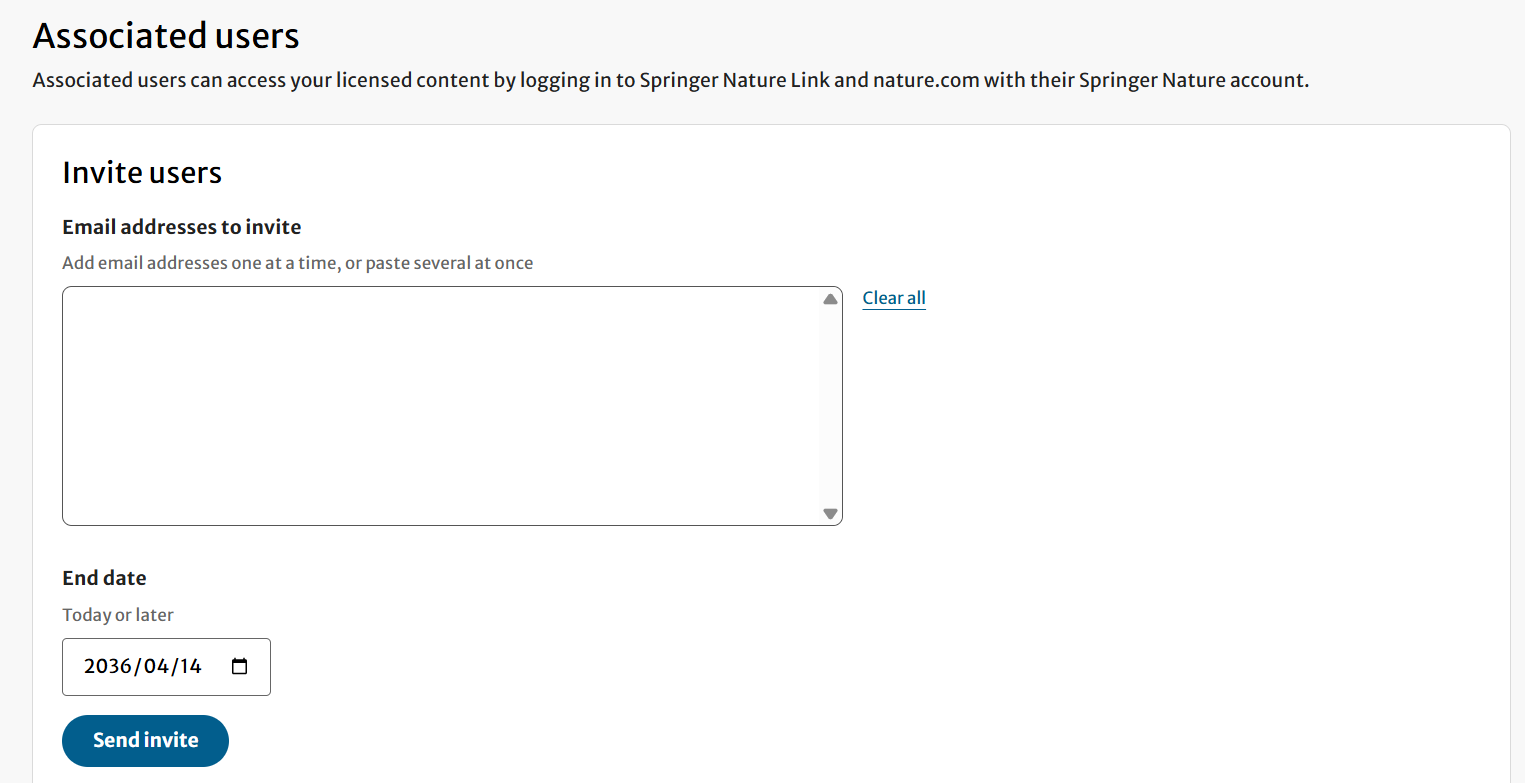
Step 2: Receiving an invitation email (sent in step 1).
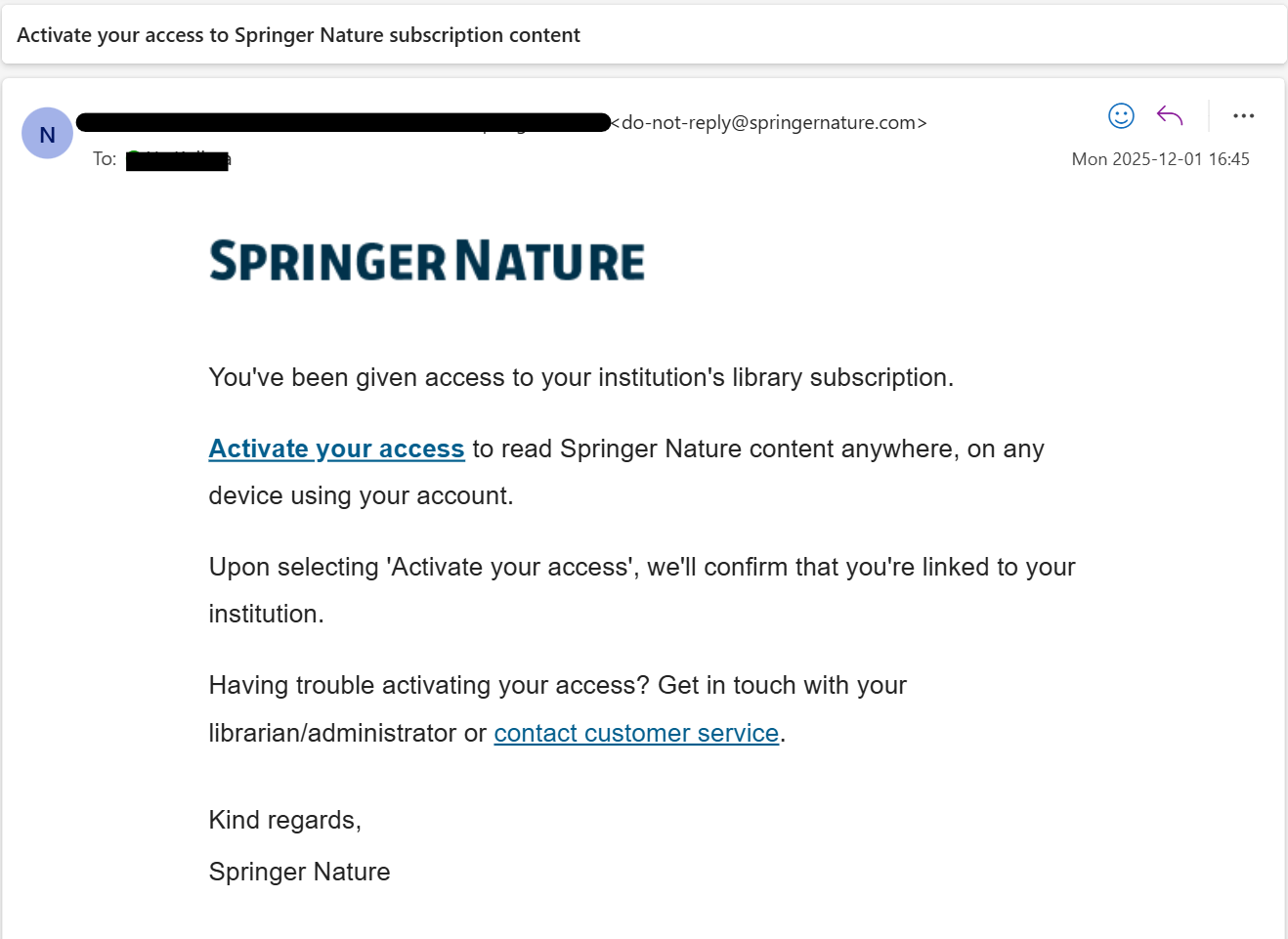
Click on 'Activate your access' in the email and do one of the following:
If you are already logged in to your Springer Nature account: your account will be automatically associated – no need to do anything further.
If you are not currently logged in: you will be prompted to either log in or create a new account:
If you have an existing account: simply log in and you will then be automatically associated, as above.
If you do not have an account: simply sign up for one, once completed it will automatically be associated.
Once a new user has been associated they will (upon logging into their account) be able to access all of your organisation's subscribed content.
Additional reading: Springer Nature Link / Springer Username and Password Help